A 60-second move · ChatGPT → Claude
Move your memory
from ChatGPT
into Claude.
You spent months teaching another AI how you work. That context shouldn't disappear just because you want to try something new. Two copy-pastes. Under a minute. Your first chat with Claude feels like your hundredth.
2steps
~60stotal time
$0works on free plan
Step 1 · In ChatGPT
Have ChatGPT pack your memory.
Open a fresh chat with ChatGPT (or whichever AI has been holding your context). Paste the prompt below. It's written specifically to gather everything in one place — preferences, projects, voice, recurring context.
PASTE-READY
→ Drop this into ChatGPT
Please compile a comprehensive summary of
everything you know about me from our past
conversations. Include my preferences, projects,
work style, recurring topics, and any context
that would help another AI assistant pick up
where you left off. Format it clearly so I can
copy and paste it into another tool.
Source · claude.com/import-memory
Step 2 · In Claude
Drop the result into Claude's memory.
Copy ChatGPT's full response. Open Claude → Settings → Capabilities, find Import memory from other AI providers, click Start import, and paste. Claude updates its memory and you're good to go.
Settings › Capabilities › Import memory › Start import
FIG. 01
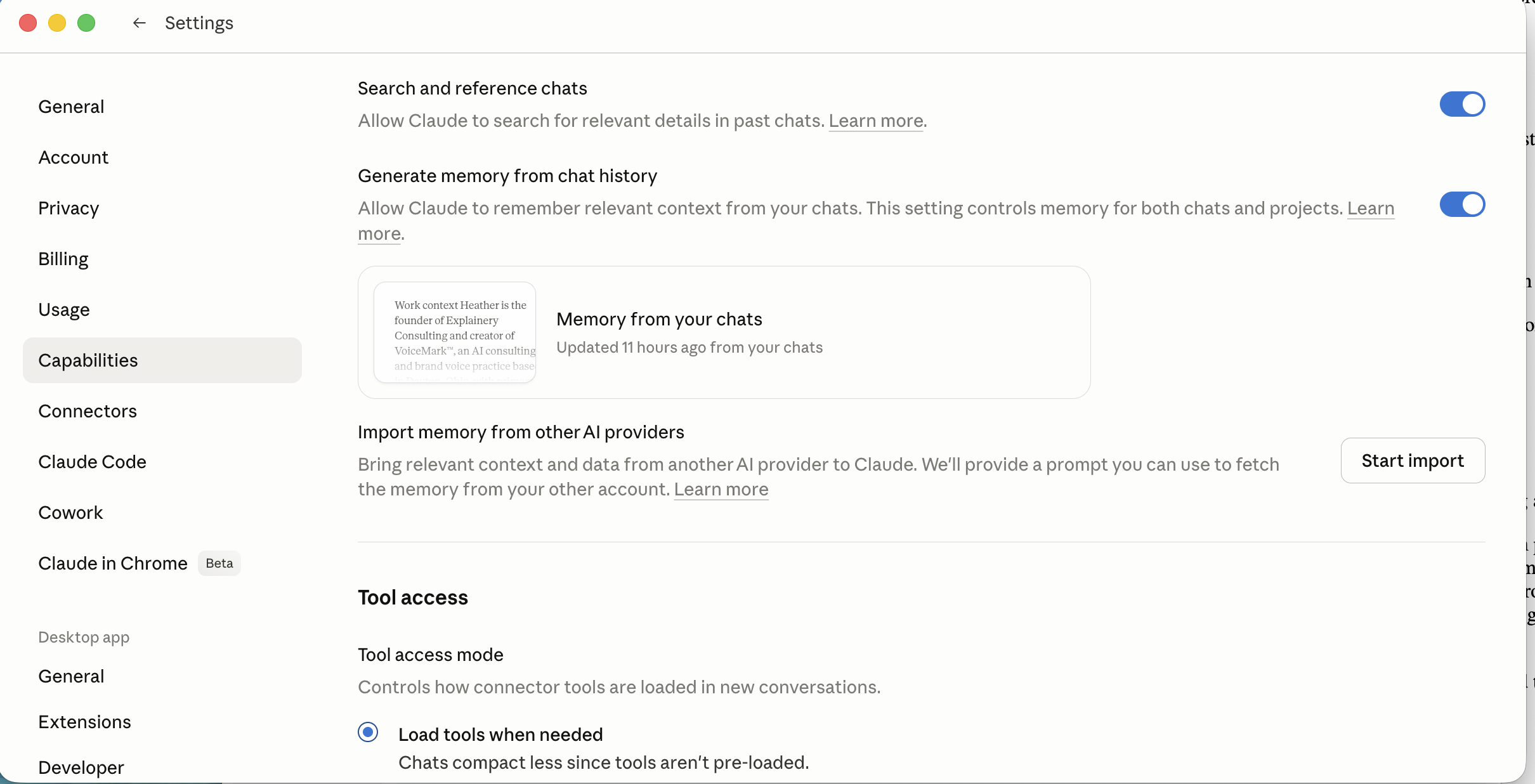
Claude Desktop · Settings → Capabilities · the row you're looking for is "Import memory from other AI providers"
— Heather, Explainery
The whole point of memory is that your AI knows you on day one. Don't start from scratch — bring the brain with you.
Before & after the paste
The checklist, the gotchas, and what to do day one.
A few things to verify before you paste, a few common questions, and a quick "first prompts" list to make sure Claude's new memory actually shows up in your work.
Use a fresh ChatGPT chat
Old threads pollute the summary. New chat = cleaner export.
Skim before you paste
Strip anything outdated, private, or off-brand. You're picking what travels.
Toggle "Generate memory from chat history"
It's the switch on the same Capabilities page. Off = nothing sticks.
Toggle "Search and reference chats"
Lets Claude pull from past conversations the way you've gotten used to.
Sanity-check what landed
Open the memory panel after import. Edit or delete anything that's wrong — you control it.
Try it on the free plan first
You can import memory before upgrading. Test-drive it with your real work.
03
The Questions Everyone Asks
Is my data safe in this transfer?
You're moving text you copied yourself — no API connection between providers. Claude lets you view, edit, and delete anything in memory at any time. Project context stays separate so nothing bleeds together.
Do I have to leave ChatGPT?
No. This is an import, not a migration. Use both. Many of our clients land on a stack — Claude for the deep, voice-sensitive work, ChatGPT for fast utility tasks.
What if the summary is huge?
Paste it anyway. If you hit a length limit, ask ChatGPT to shorten it to "the 30 most important things another AI should know about me" and try again.
Will my custom GPT instructions transfer?
Not directly — those live inside ChatGPT. The memory import covers context, not configuration. For custom-GPT-style behavior in Claude, build a Project with instructions instead.
What should I ask Claude first?
Test the memory. Try: "Based on what you know about me, what would you suggest I focus on this week?" If the answer feels generic, your import didn't fully take — re-paste or expand.
I'm not technical — is this really for me?
Yes. If you can copy and paste, you can do this. If you'd rather have someone do it with you (and audit what's worth keeping), that's literally what we do at Explainery.
When you're ready for the rest
AI strategy from the inside out.
Memory's the easy part. We help small businesses fix the messaging, make your website clearer for people and search engines, and wire automations into the tools you already use.
Book a clarity session